1.1. Introduction to Lily
Welcome to Lily, your smart AI marketing assistant. Engineered using a Hybrid Pipeline + Agent Architecture, Lily balances creative conversational freedom with lightning-fast automation workflows to manage your brand strategy.
Conversational Assistant (Agent Mode)
Ask Lily open-ended research questions, brainstorm marketing campaigns, review copy, or ask her to read and summarize complex documents. Lily reasons step-by-step, deciding when to search the web, read files, or check active settings.
Automated Workflows (Pipeline Mode)
Bypasses open-ended chat reasoning for rapid, structured tasks like content drafting or influencer discovery. Lily triggers fast-path pipelines that guide you through interactive steps, dropping latency from minutes to seconds.
1.2. Requesting Trial Access & Verification
Before signing in, your account must be registered and authorized for the free trial phase. Follow these steps to obtain access:
Step 1. Apply for the Free Trial
Submit your application specifying company details, role, and expected social media usage.
Account Verification
The InfluenzeAI team will review registration details and verify your email domain.
Onboarding Confirmation Email
Once authorized, you will receive an onboarding confirmation email containing direct login links.
1.3. Account Creation & Workspace Isolation
Once your account has been verified and approved, complete your onboarding by selecting or creating a workspace:
Step 1: Sign In
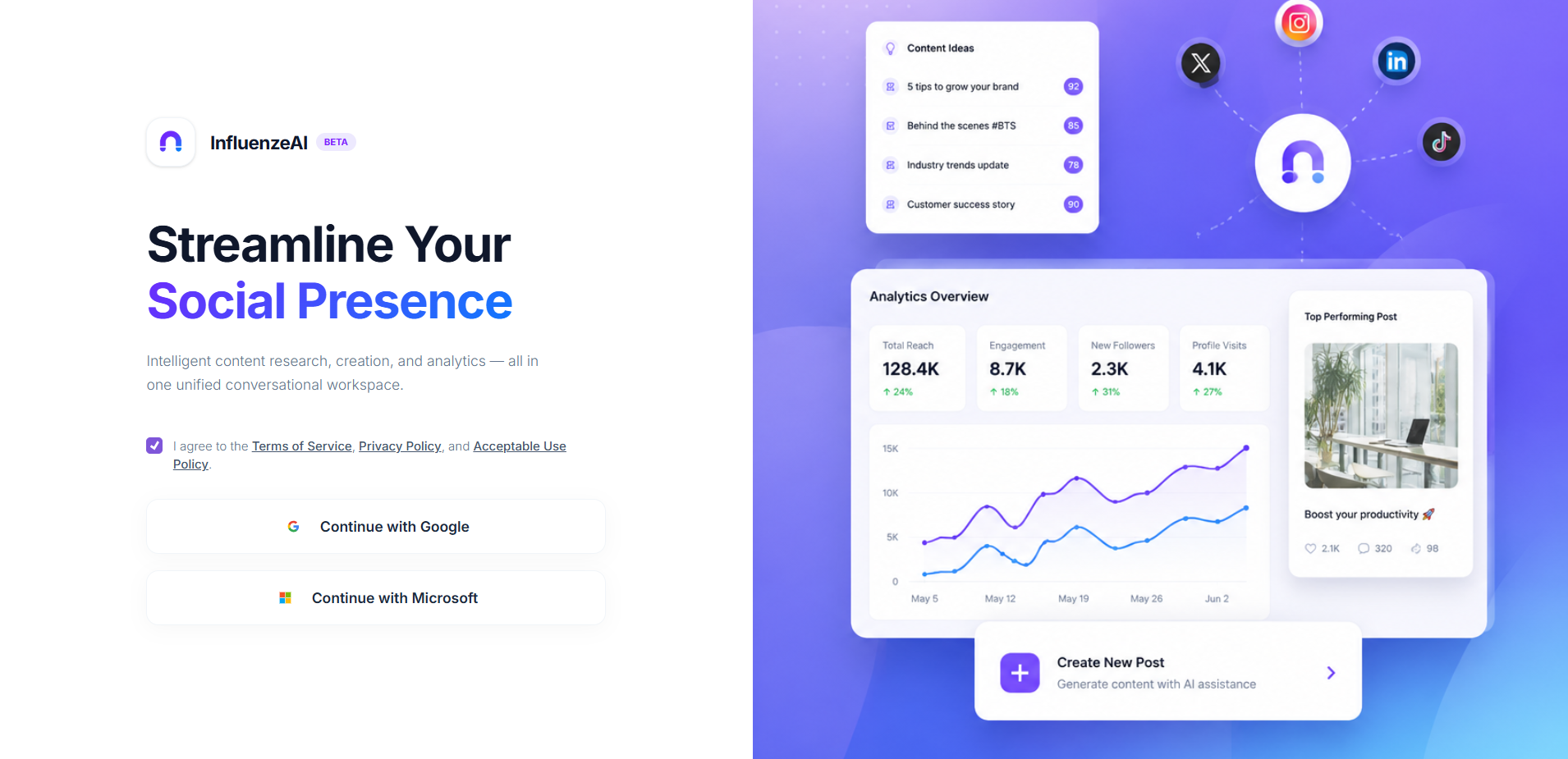
Navigate to the login console and authenticate using one of your authorized single sign-on (SSO) providers:
Step 2: Choose or Create a Workspace
Lily isolates files, data, and active social channels within workspaces. Select how you want to begin:
1.3.1. Account Onboarding Steps Walkthrough
Click through the tabs below to view the step-by-step screenshots of the onboarding process inside the application:
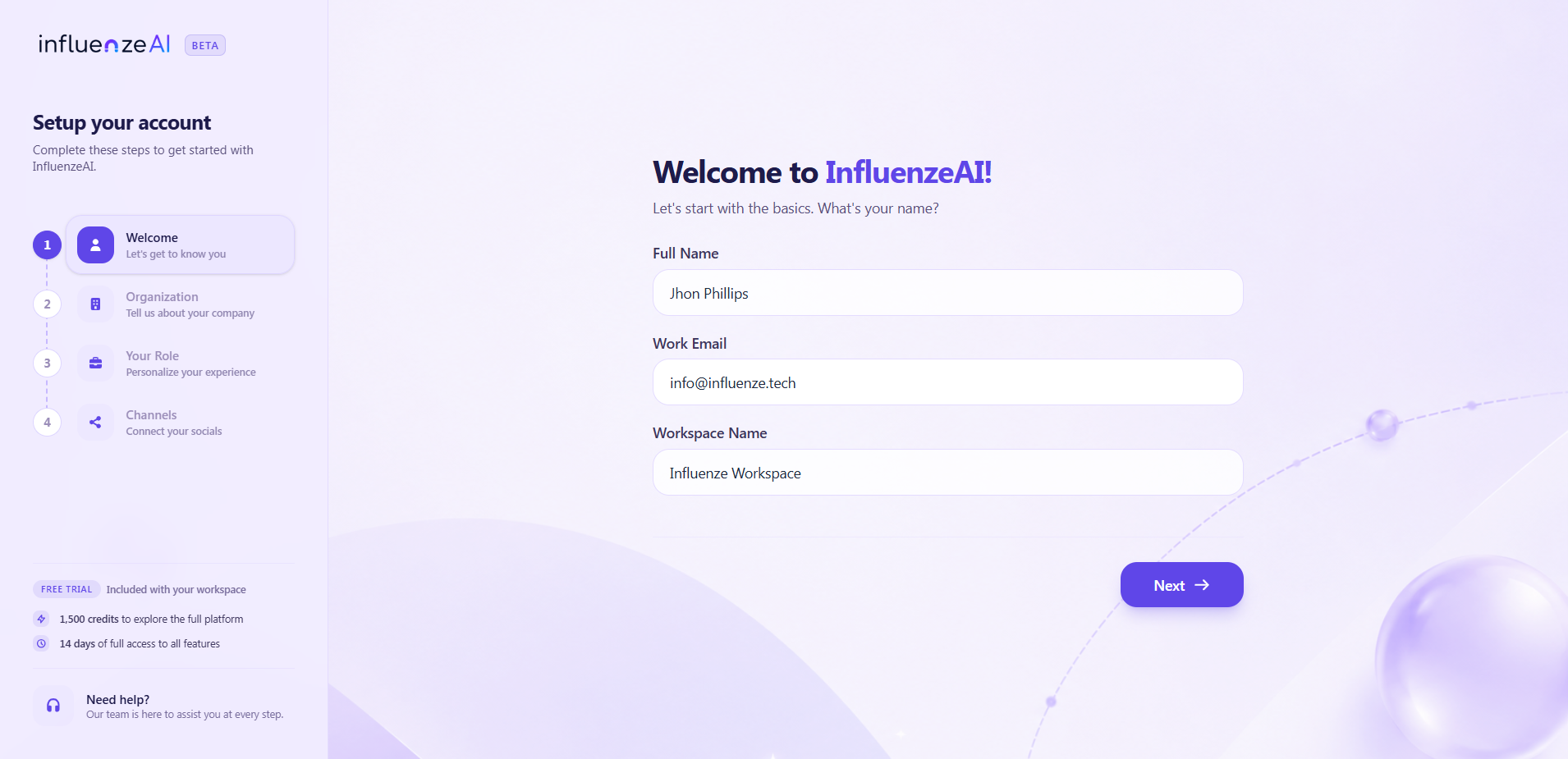
Step 1: Give your Basic Details
Give your Basic Details with Name and Email
1.4. Interface Tour & Account Settings
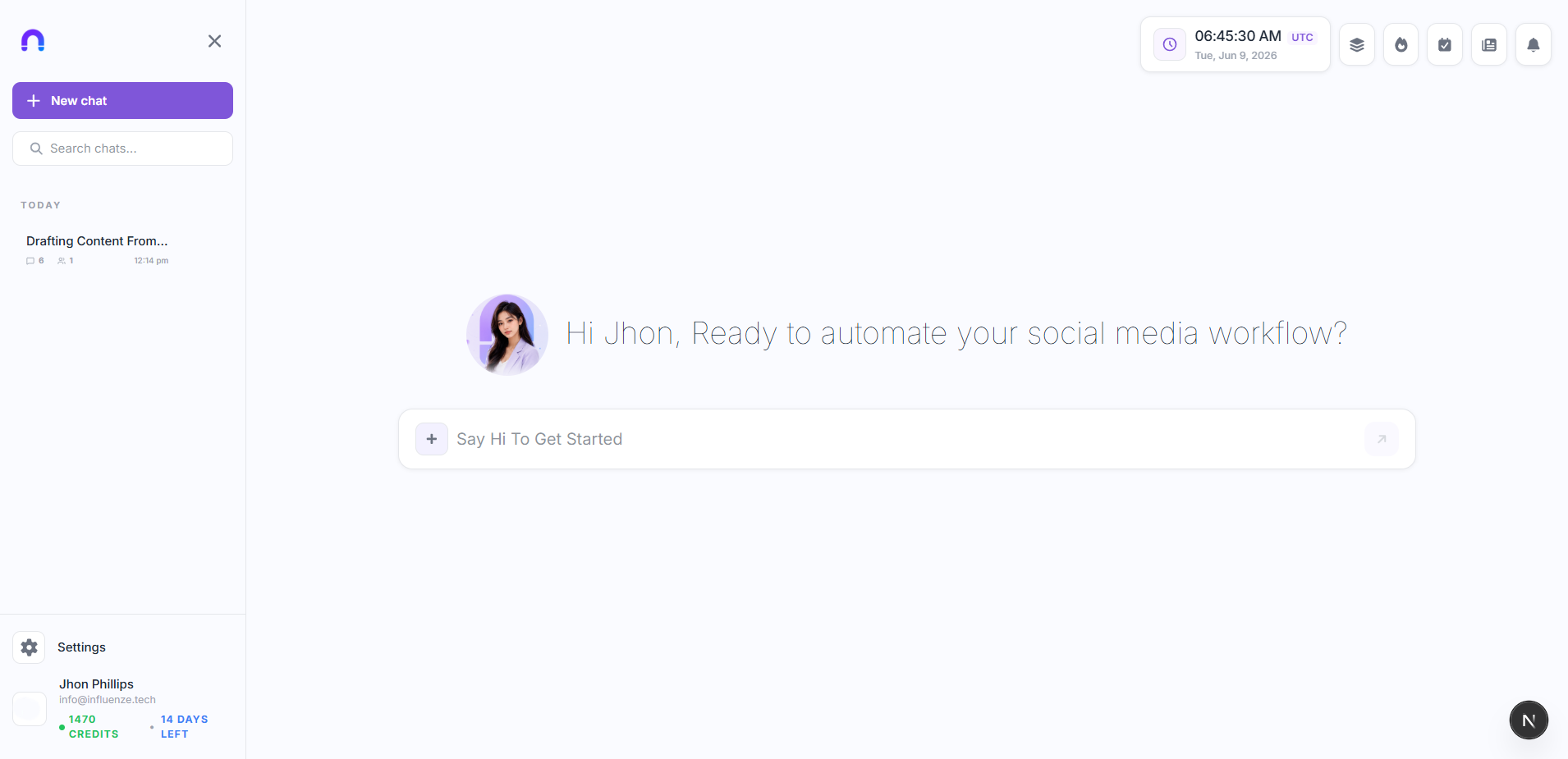
The dashboard is organized into four core functional zones:
The Sidebar
Manage active research chats (grouped by date), view remaining credits, and configure settings.
The Chat Console
The main dialog area to message Lily. Features quick-option action pills to draft copy, research niches, or send briefings.
Slide-out Canvases
Right-side panels that expand into distraction-free workspaces for script writing, photo generation, or editing schedules.
Account Settings Page
Customize your personal options, notification emails, and workspace brand parameters.
Settings Panel Deep-Dive
Appearance & Themes
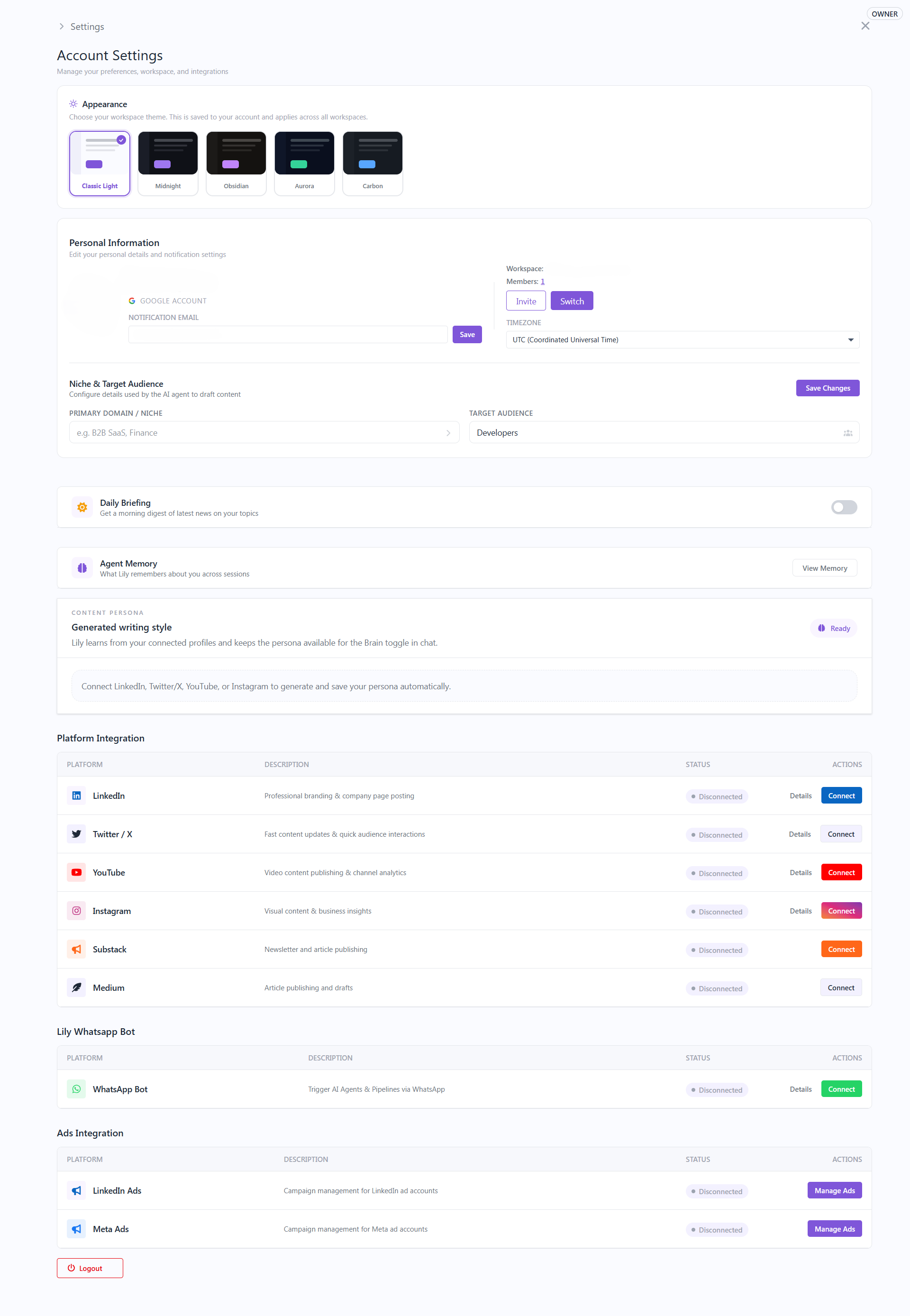
Choose between 5 bespoke UI themes in settings: Classic Light, Midnight, Obsidian, Aurora, or Carbon.
User Profile & Notifications
Update contact variables and configure the destination address for receiving daily email digests generated by Lily.
Workspace Invites
Generate new tokens or invite members to join your workspace to collaborate on upcoming scheduled campaigns.
Content Strategy Settings
Define your Business Domain and Focus Audience. Lily uses these to contextualize drafts and search queries.